If Jenny Mod crashes on launch, won’t install, or breaks after a Minecraft update, the fastest fix is always one of three things: a mismatched Forge/Fabric version, a missing dependency mod, or a corrupted download file. This guide covers all fixes for every common Jenny mod error.
Jenny Mod is one of the most searched-for Minecraft mods on the internet. The mod is created by Slippery T and is a community-maintained Minecraft mod. This is the reason that it comes with certain troubleshooting headaches. Most of these issues aren’t really “Jenny Mod problems” — they’re general modded-Minecraft problems that happen to show up when people install this particular mod for the first time. That’s actually good news, because it means the fixes below are well-tested, well-documented, and reliable.
Quick Answer: Most Common Jenny Mod Fixes at a Glance
| ⚠️ Problem | 🔍 Most Likely Cause | ✅ Fastest Fix |
|---|---|---|
Minecraft crashes on startup | Wrong Forge or Fabric version installed. | Match the mod version exactly with your Minecraft version. |
Mod doesn't appear in Mods list | The mod file was placed in the wrong folder. | Move the .jar file into the .minecraft/mods folder. |
Game freezes while loading a world | A required dependency or API mod is missing. | Install the required library or dependency mod. |
Black or missing textures | Resource pack conflict. | Disable resource packs and reinstall the mod if needed. |
"Mod ID not found" error | The downloaded mod file is corrupted. | Delete the file and download a fresh copy from a trusted source. |
Game works, then crashes later | Another installed mod is causing a conflict. | Disable mods one at a time until you find the conflicting one. |
Game runs but is very laggy | Too little RAM is allocated to Minecraft. | Increase the allocated memory in your launcher settings. |
Jenny won't spawn in the world | Spawn settings are disabled or conditions are not met. | Check the config file or create a new test world. |
Black screen after clicking Play | Slow loading, outdated graphics driver, or low RAM. | Wait a few minutes, update GPU drivers, or launch Minecraft in windowed mode. |
Understanding Why Jenny Mod Errors Happen in the First Place
Before jumping into fixes, let's understand the workings of modded Minecraft. Minecraft itself is built in Java, and mods like Jenny Mod work by injecting new code into the base game. The process is done by using a mod loader such as Forge or Fabric. These loaders act as a translator between the mod's code and the game engine.
If something goes wrong, it doesn't mean the mod is broken. But it's because:
- The mod version doesn't match the Minecraft version
- The mod loader version doesn't match the mod
- Java itself is outdated or misconfigured
- A specific mod file is missing.
- Another installed mod is conflicting with Jenny Mod's code.
Once you know this, fixing Jenny Mod becomes extremely effortless. This is the same roadway which professional Minecraft players follow to debug and sort out the problems.
Before You Start: Check Your System Requirements
A surprising number of "Jenny Mod won't launch" reports occur because the device and installation requirements are not met. Meet these basic conditions first.
Java Version
Minecraft 1.17 and above requires Java 17 or newer; older versions need Java 8. Running the wrong Java build is one of the single biggest causes of silent crashes.
RAM Allocation
Modded Minecraft typically needs at least 4GB allocated in your launcher, though 6–8GB is safer for smoother performance.
Minecraft Version
Jenny Mod releases are version-specific. Installing a 1.19 build of the mod on a 1.20 game instance will fail almost every time.
Fix #1: Jenny Mod Won't Install ("Version Mismatch/Misplaced File")
One of the common errors that most people skip past is a Minecraft version mismatch. It also comes down to file placement.
Step-by-Step Fix:
1. Confirm your Minecraft version. Check the version dropdown in your Minecraft Launcher and note the exact version you are using.
2. Download the correct Jenny Mod version. Make sure you download the Jenny Mod build that matches your Minecraft version exactly—not a "close enough" version.
3. Find your Minecraft folder. On Windows, open %appdata%/.minecraft. On macOS, go to ~/Library/Application Support/minecraft.
4. Open the mods folder. If the folder doesn't exist, create it. In most cases, a missing mods folder means Forge or Fabric hasn't been installed yet.
5. Move the Jenny Mod file. Place the Jenny Mod .jar file directly inside the mods folder. Do not extract or unzip the file.
6. Launch the correct game profile. Start Minecraft using the Forge or Fabric profile instead of the vanilla Minecraft profile.
Still missing the mods folder? That's usually the real issue. It means the mod loader installation didn't complete successfully. Reinstall Forge or Fabric, launch the modded profile once to make sure it works, and then add the Jenny Mod to the mods folder.
Fix #2: Game Crash (Forge Error Fix)
After installing Jenny Mod, when you launch the game, it may not load and crash. This usually happens because of an incorrect mod loader. You need Forge specifically built for Minecraft 1.12.2, not the latest Forge, and not a random version downloaded from another source.
How to Fix:
1. Visit the official Minecraft Forge website. Always download Forge from the official source to avoid compatibility issues and corrupted files.
2. Select Minecraft version 1.12.2. Choose 1.12.2 from the list of available Minecraft versions before downloading Forge.
3. Download the recommended installer. Choose the Recommended Forge installer instead of the newest or latest release.
4. Install Forge. Open the downloaded installer and select the "Install Client" option to install Forge on your computer.
5. Launch the Forge profile. Open the Minecraft Launcher and switch to the Forge 1.12.2 installation profile.
6. Start Minecraft once before adding mods. Launch Minecraft using Forge one time to confirm the installation works, then place the Jenny Mod .jar file into the mods folder.
Fix #3: Mod Doesn't Show Up in the Mods Menu
If Minecraft launches fine but Jenny Mod simply isn't listed, the file likely landed in the wrong place or in the wrong format. This might sound obvious, but it's one of the most common mistakes. Many players leave the Jenny Mod file in their Downloads folder, on the Desktop, or somewhere else instead of moving it to the mods folder. If Minecraft can't find the file, the mod simply won't load.
How to Fix
Check the File Extension
Confirm the downloaded Jenny Mod file ends with .jar, not .zip or .rar. Some browsers rename downloads incorrectly.
Move the File to the Mods Folder
Place the Jenny Mod .jar file inside this folder. Minecraft won't detect the mod if it's left on your Desktop or in Downloads.
Launch the Correct Profile
Start Minecraft using the Forge or Fabric profile instead of the default Vanilla Minecraft profile.
Verify Version Compatibility
Make sure the Jenny Mod version matches your installed Forge or Fabric version exactly. Even a small version mismatch can prevent the mod from appearing in the Mods menu.
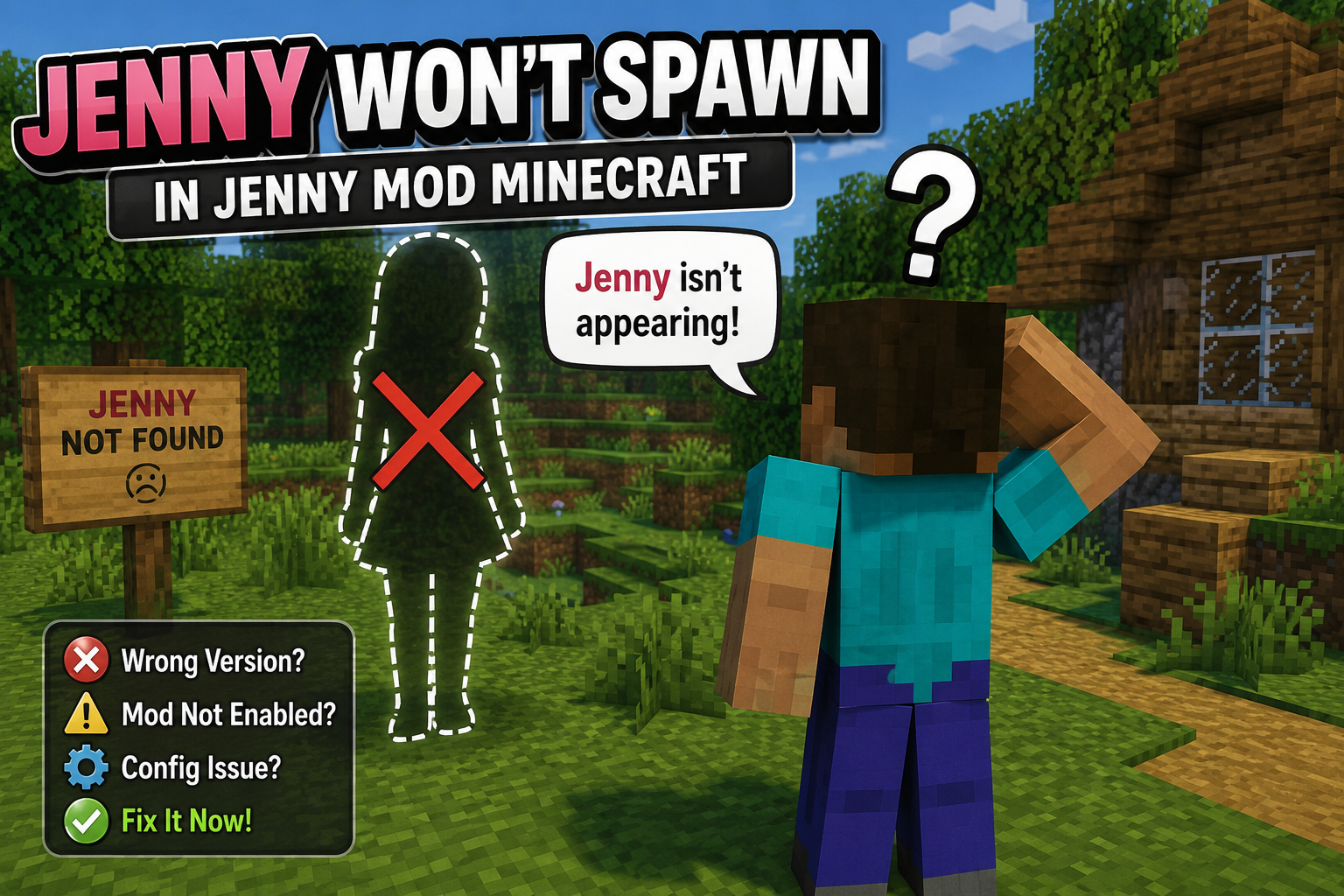
Fix #4: Jenny Won't Spawn in the World
The mod installs cleanly, the game loads with no crash, but the character never actually appears in your world. This is one of the trickier issues because there's no error message pointing you to the cause — the game is technically working, just not doing what you expect.
Most Common Causes
Many mod entities are configured to spawn only under specific conditions (a certain biome, light level, structure, or block nearby). If you're not in the right location, nothing will appear no matter how long you wait.
Some mod versions ship with a config file where the entity spawn can be toggled off by default or reset after an update. Check the mod's config folder for a spawn-related setting.
Entities and structures tied to world generation often only appear in newly generated chunks. Adding a mod to an existing save won't retroactively populate already-explored areas.
If another installed mod also modifies spawning or entity registration, it can silently override Jenny Mod's spawn logic without throwing a visible error.
Step-by-Step Fix
.minecraft/config and look for a Jenny Mod config file; confirm any spawn-related setting is enabled.Fix #5: Performance Issues and Lag After Installing
Jenny Mod adds far more than the standard version of Minecraft has to handle. New characters, animations, and extra game content all require additional system resources. If you're playing on an older PC or one with limited RAM, it's normal to experience lag, freezing, or lower frame rates.
Performance Fixes:
1. Increase allocated RAM in your launcher. Increase allocated RAM in your launcher (aim for 6GB+ if your system has 16GB or more total).
2. Install a performance mod alongside Jenny Mod. Install a performance mod alongside Jenny Mod, such as a widely-used optimization mod compatible with your loader.
3. Lower render distance in video settings. Lower render distance in video settings.
4. Close background applications competing for RAM and CPU. Close background applications competing for RAM and CPU.
Fix #6: "Failed to Download" or Corrupted File Errors
If the download itself fails, stalls, or produces a file that won't open, the issue is almost always source-related rather than something on your end.
What to Check:
1. Download from a trusted source. Try downloading from a trusted source such as downloadjennymod.org rather than retrying the same broken link.
2. Check your antivirus or browser. Check that your antivirus or browser hasn't quarantined the file (mod .jar files are sometimes flagged incorrectly).
3. Verify the file size. Verify the file size matches what's listed on the source page — a partial download will be noticeably smaller.
Fix #7: Conflicts With Other Mods
Jenny Mod, like most content mods, can conflict with other mods that modify similar game systems, such as AI behavior, entity rendering, or world generation. If two mods try to change the same feature, Minecraft may crash or fail to load correctly.
Common Signs of a Mod Conflict
Crash After Installing a New Mod
Minecraft crashes only after adding another mod to your existing mod pack.
Entity Behavior Conflict
Two different mods are trying to control the same entity or AI behavior at the same time.
Duplicate Registration Errors
The crash log contains messages such as "duplicate registration" or "already registered", indicating that two mods are registering the same game element.
Fix Approach
Test Your Mods
Disable half of your installed mods and keep only the Jenny Mod enabled. Launch Minecraft and check whether the game works. If it does, enable your mods gradually until you find the conflicting one. Testing is much faster and more reliable than guessing.
Fix #8: Black Screen After Clicking Play
A black screen right after hitting "Play" is one of the more alarming issues because it looks like nothing is happening at all — no error, no crash report, just an unresponsive black window. In most cases, the game is actually still loading in the background; it just hasn't rendered anything yet.
Common Causes and Fixes
Game is still loading shaders or textures
Modded instances with added textures take longer to initialize. Wait 60–90 seconds before assuming it's frozen, especially on a slower drive or older CPU.
Graphics driver issue
Outdated GPU drivers are a frequent cause of black-screen freezes in modded Minecraft. Update to the latest driver from your GPU manufacturer (NVIDIA, AMD, or Intel) and restart your system.
OpenGL conflict
Some systems experience rendering conflicts between Minecraft's OpenGL calls and certain mods. Try launching without OptiFine or shader packs to see if the black screen resolves.
Insufficient RAM allocation causing a silent hang
If the launcher allocated too little memory, the game can hang while trying to load mod assets rather than crashing outright. Increase allocated RAM in your launcher's installation settings.
Fullscreen mode conflict
On some systems, launching directly into fullscreen mode causes a black screen that windowed mode doesn't. Switch to windowed mode in the launcher's video settings and try again.
Step-by-Step Fix
crash-reports folder — sometimes a report is generated even when the screen itself never updates.This issue is rarely caused by Jenny Mod specifically; it's almost always a rendering or driver-level problem that happens to surface after installing new content, since new textures and models put extra load on the graphics pipeline during the first launch.
Forge vs Fabric for Jenny Mod Compatibility
| Factor | Forge | Fabric |
|---|---|---|
| Mod availability | Very wide, most content mods support it | Growing rapidly, lighter footprint |
| Setup complexity | Slightly more involved | Simpler, faster updates |
| Performance | Heavier | Generally lighter |
| Best for | Large modpacks, content-heavy mods | Lightweight setups, latest versions first |
Why Isn't My Jenny Mod Working?
⚠️ Why It Happens
Jenny Mod usually fails because of a version mismatch — double-check that your Minecraft, Forge (or Fabric), and mod versions all line up.
Make sure the file sits directly in your .minecraft/mods folder, not zipped or in a subfolder.
🛠️ How to Fix It
If it still won't load, check the crash log in .minecraft/logs, which usually names the exact conflicting file.
Corrupted downloads are common with unofficial sources too, so re-download from a trusted site if the issue persists.
On Windows, running Minecraft as admin or briefly disabling antivirus can fix silent install failures.
Jenny Mod Not Loading - What to Do
⚠️ Why It Isn't Loading
If Jenny Mod isn't loading, start by confirming your Minecraft, Forge (or Fabric), and mod versions all match — a mismatch is the top cause.
Check that the mod file sits directly inside your .minecraft/mods folder, not zipped or buried in a subfolder.
🛠️ What to Do
Open .minecraft/logs to find the crash log, which usually points straight to the conflicting mod.
If the file itself is corrupted or from an unofficial source, re-download it from a trusted site like downloadjennymod.org
On Windows, try running Minecraft as admin or briefly disabling antivirus, since it can silently block the install.
Why Is My Minecraft Mod Not Showing Up?
⚠️ Why It Happens
If your Minecraft mod isn't showing up, it's usually because the mod isn't compatible with your Minecraft or Forge version, or it's installed in the wrong location.
Some mods also require additional dependency libraries before they can load properly.
🛠️ How to Fix It
Make sure the mod's .jar file is inside the correct mods folder and that you're launching the game with the appropriate Forge or Fabric profile.
If the mod still doesn't appear in the Mods menu, check the latest crash log or remove other mods to identify possible conflicts.
Jenny Mod Compatibility Issues – How to Solve Them
⚠️ Why It Happens
Most Jenny Mod compatibility issues happen when the Minecraft version, Forge version, and Jenny Mod version don't match.
If you're using other mods, some animation or NPC mods can interfere with Jenny Mod.
🛠️ How to Solve It
To avoid crashes or loading errors, make sure all three are compatible before launching the game.
Disable other mods temporarily to check for conflicts.
It's also a good idea to use a clean mods folder with only Jenny Mod installed while testing.
Once everything is compatible, the mod should load and run as expected.
What to Do If a Mod Crashes Your Game
⚠️ What Causes the Crash?
If a Minecraft mod crashes your game, don't panic or reinstall everything immediately.
Check that the mod is compatible with your Minecraft, Forge (or Fabric), and Java versions, as version mismatches are one of the most common causes of crashes.
🛠️ What to Do
Start by removing the recently added mod and launch Minecraft again to confirm it's causing the issue.
If the game still crashes, review the latest crash log for error details and test your mods one at a time to identify any conflicts.
Keeping your mods updated and downloading them only from trusted sources can also help prevent future crashes.
How to Troubleshoot Mod Configuration Problems
⚠️ Why It Happens
If a Minecraft mod isn't working as expected, the problem may be caused by an incorrect configuration rather than the mod itself.
Make sure the configuration matches your Minecraft, Forge (or Fabric), and mod versions, as outdated or unsupported options can cause errors.
🛠️ How to Fix It
Start by checking the mod's config file and restore the default settings if you've recently made changes.
If the issue continues, delete the mod's configuration file and let Minecraft generate a new one the next time you launch the game.
This simple reset often fixes configuration-related problems without reinstalling the mod.
Why Does My Game Lag After Adding Jenny Mod?
⚠️ Why It Happens
If your game starts lagging after installing Jenny Mod, it's usually because the mod adds extra characters, animations, textures, and gameplay features that require more CPU, RAM, and GPU resources than vanilla Minecraft.
Older computers or systems with limited memory may struggle to handle this additional workload, resulting in lower FPS, stuttering, or longer loading times.
🛠️ How to Fix It
To improve performance, allocate more RAM to Minecraft, lower your graphics settings, reduce render distance, disable heavy shaders, and remove unnecessary mods that may be competing for system resources.
These simple optimizations can significantly improve gameplay performance.
What Happens If You Install Mods Wrong?
⚠️ What Happens
Installing Minecraft mods incorrectly can cause a variety of problems, including game crashes, missing mods, startup errors, or worlds that fail to load.
These issues often happen when the mod doesn't match your Minecraft version, Forge or Fabric loader, or when the .jar file is placed in the wrong folder.
In some cases, missing dependencies or conflicting mods can also prevent Minecraft from launching properly.
🛠️ How to Avoid It
To avoid these problems, always back up your world, follow the mod's installation instructions, and download mods only from trusted platforms like CurseForge or Modrinth.
Why Won't My Mod List Show All My Installed Mods?
⚠️ Why It Happens
If your Minecraft mod list doesn't show all of your installed mods, it's usually because some mods aren't compatible with your current Minecraft, Forge, or Fabric version.
Another common reason is that the mod files are in the wrong mods folder or require additional dependency mods before they can load.
🛠️ How to Fix It
Make sure you're launching the correct Forge or Fabric profile, as the default Minecraft profile won't load mods.
If some mods are still missing, remove recently added mods one by one and check the latest log file for loading errors or compatibility issues.
How to Activate the Jenny Mod in Minecraft
🎮 Activation Process
After installing Jenny Mod, launch Minecraft using the Forge profile instead of the default game version.
Once the game opens, create or load a compatible world, and Forge will automatically load the mod if it has been installed correctly.
You can confirm the installation by clicking the Mods button on the main menu and checking that Jenny Mod appears in the list.
✅ If It Doesn't Work
If the mod doesn't show up, verify that the .jar file is in the correct mods folder and that you're using compatible versions of Minecraft, Forge, and the mod.
Can You Use Multiple Mods Together Without Issues?
⚠️ What You Should Know
Yes, you can use multiple Minecraft mods together, but they must be compatible with the same Minecraft version, mod loader (such as Minecraft Forge or Fabric), and, in some cases, specific dependency libraries.
Many players run dozens of mods successfully, but mixing incompatible mods can lead to crashes, missing features, or poor performance.
✅ Best Practice
To avoid problems, install mods from trusted sources, check each mod's compatibility requirements, and add them one at a time so it's easier to identify any conflicts.
Well-tested modpacks are often the safest option because the included mods have already been checked for compatibility.
How to Update Your Mods Without Breaking Them
⚠️ Before You Update
Updating your Minecraft mods is easy, but doing it the wrong way can cause crashes, missing items, or world corruption.
Before installing a new version, back up your Minecraft world and the existing mods folder so you can restore everything if something goes wrong.
✅ Safe Update Method
Always download the update that's compatible with your Minecraft version and Forge or Fabric loader, then replace the old mod file with the new one instead of keeping both versions.
If you're using a modpack, avoid updating individual mods unless the modpack creator recommends it, as the included mods are tested to work together.
How to Get Help When a Mod Stops Working
⚠️ Before Asking for Help
If you've tried the basic fixes and your Minecraft mod still isn't working, gather as much information as possible before asking for help.
Note your Minecraft version, Forge or Fabric version, Java version, installed mods, and any crash or error messages.
Sharing your latest crash log makes it much easier for experienced players or mod developers to identify the problem.
✅ Where to Get Help
You can seek help through the mod's official support page, GitHub issues, community Discord server, or Minecraft modding forums, where providing detailed information often leads to faster and more accurate solutions.
What Minecraft Version Should I Use for Mods?
🎮 Choosing the Right Version
The best Minecraft version for mods depends on the mod you want to use, but the most important rule is that your Minecraft version, mod loader (such as Forge or Fabric), and the mod itself must all match.
Many popular mods are built for specific versions like 1.12.2, 1.16.5, or 1.20.1, so always check the mod's compatibility before installing it.
✅ Best Practice
If you're using Jenny Mod, install the exact Minecraft and Forge versions recommended by the mod developer to avoid crashes or loading errors.
Matching versions is the key to a stable and enjoyable modded Minecraft experience.
How to Backup Your Minecraft World Before Installing Mods
💾 Why You Should Create a Backup
Before installing any Minecraft mod, it's always a good idea to back up your world so you don't lose your progress if something goes wrong.
Taking a few minutes to create a backup gives you a safe restore point if a mod causes crashes, corruption, or compatibility issues.
✅ How to Back Up Your World
In Minecraft: Java Edition, open Singleplayer, select your world, click Edit, and choose Make Backup to create a copy of your save.
You can also manually copy your world's folder from the saves directory to another location on your computer or an external drive for extra protection.
How to Test If a Single Mod Is the Problem
🔍 Identify the Cause
If you think one Minecraft mod is causing crashes or other issues, test it by temporarily disabling all other mods and launching the game with only that mod installed.
If Minecraft runs normally, the problem is likely a conflict with another mod rather than the mod itself.
✅ How to Test It
If the issue remains, check that the mod is compatible with your Minecraft, Forge (or Fabric), and Java versions.
When you have many mods installed, a binary search method—disabling half the mods at a time—is one of the fastest ways to identify the problematic mod.
How to Update Your Minecraft Launcher for Mods
🚀 Why Keep Your Launcher Updated?
Keeping your Minecraft Launcher up to date helps ensure the best compatibility with Minecraft mods and the latest game releases.
The launcher normally updates automatically when you open it, but you can also check for updates by going to Settings > About and installing any available launcher updates.
✅ Best Practice
After updating, verify that you're using the correct Minecraft installation and the appropriate Forge or Fabric profile for your mods.
An updated launcher, along with compatible mod versions, reduces installation errors and helps mods load correctly.
How to Get Your Game Running Smoothly With Mods
⚡ Performance Basics
To keep Minecraft running smoothly with mods, start by using mods that are compatible with your Minecraft version and Forge or Fabric loader.
Avoid installing too many heavy mods at once, and allocate enough RAM without giving Minecraft more memory than it actually needs.
✅ Improve Performance
Lower graphics settings, reduce render distance, and keep your graphics drivers updated to improve performance.
If you play with large modpacks, consider using trusted optimization mods or performance-focused launchers to reduce lag and improve FPS.
Conclusion
Jenny Mod troubleshooting is usually easier than it looks. Most problems happen because of a version mismatch, an incorrect Forge installation, missing Java, the mod being placed in the wrong folder, or conflicts with other Minecraft mods. Once you identify the real cause, you can usually fix the issue in just a few minutes. Community guides consistently point to version compatibility, correct installation, and avoiding mod conflicts as the biggest factors behind a stable setup.
If your Jenny Mod troubleshooting steps still do not solve the problem, start fresh by removing old files, downloading a clean copy from a trusted source, checking your Minecraft, Java, and Forge versions, and testing the mod without other add-ons installed. Following these best practices will help you enjoy smoother gameplay, fewer crashes, and a more reliable Minecraft experience in the future.